
Is TDAC submission free?
Yes. Submission through the Immigration Bureau’s official website has no fee. Check that the address bar says tdac.immigration.go.th.
Keep your passport, ticket and accommodation booking beside you and work through the TDAC one screen at a time. The steps below explain names, the local arrival date in Thailand, flight numbers and accommodation details. After submitting, save the completed document on your phone so you can open it at the airport.
Check that the address bar says tdac.immigration.go.th. This is the Immigration Bureau’s official website and TDAC submission is free. It is separate from the Thai e-Visa website.
Submit within three days, including your arrival date in Thailand. You need a new submission for every entry; a form from a previous trip cannot be reused. Have your passport, incoming flight number, local Thai arrival date, English accommodation address and an email address ready.
You can read the form in English or use the website’s language options or your browser’s page translation. The location of language and translation controls varies by device and browser.
Enter the information in English, even when reading translated instructions. Copy names and passport numbers exactly from the passport, and the accommodation address from the English booking confirmation. The screenshots below show the English mobile form so that you can find each button and field.
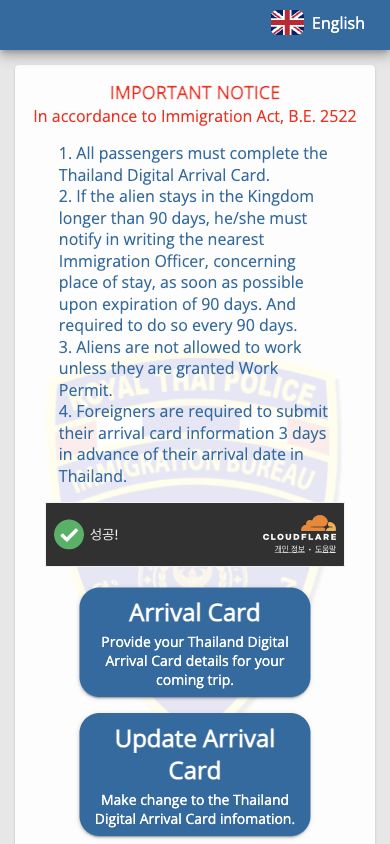
To make a new submission, press Arrival Card. The neighbouring Update Arrival Card button is for changing a form you have already submitted. Start with Arrival Card for a first submission.
The opening screen also mentions 90-day reporting and work permission. This does not mean the TDAC lasts 90 days or authorises you to work in Thailand. Use Arrival Card for this trip’s arrival declaration.
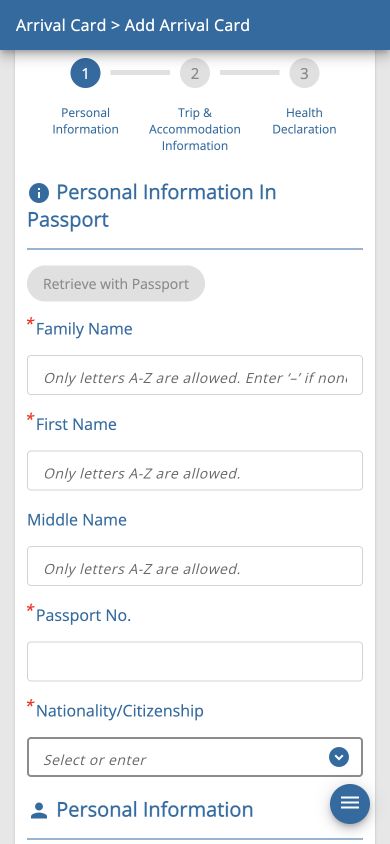
Put your surname in Family Name and given name in First Name. Do not invent a Middle Name if your passport has none. Place each name in the corresponding field and copy your passport number into Passport No.
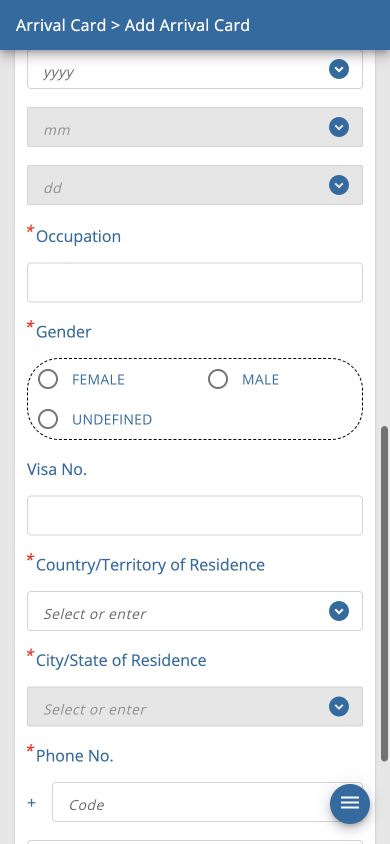
Nationality/Citizenship asks for your nationality; Date of Birth, Occupation and Gender ask for the corresponding personal details. Country/Territory of Residence is where you currently live, and City/State of Residence is your city or region. If you live outside your passport country, give the actual answer to each question rather than matching the two countries automatically.
Visa No. is the number of an issued visa. Do not invent a visa number for visa-exempt entry. Follow the required-field stars and distinguish optional fields. Enter the country calling code and phone number separately, then press Continue.
Retrieve with Passport is unavailable in the preserved screenshot. If you cannot use the passport MRZ reading feature described by the official guide, enter the details manually. If you do scan the passport, compare the retrieved names and number with the passport yourself.
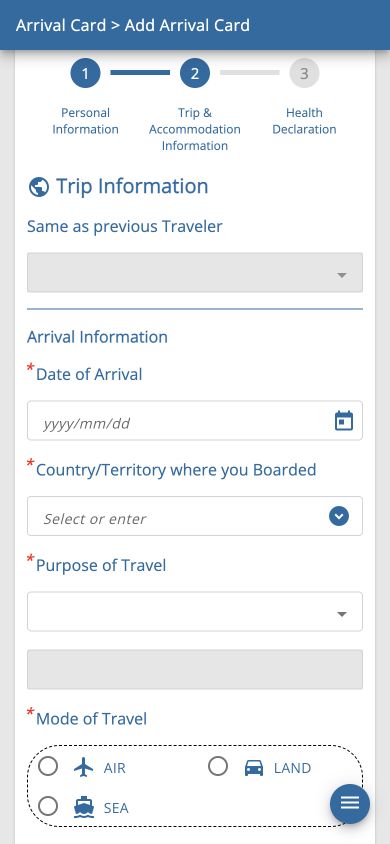
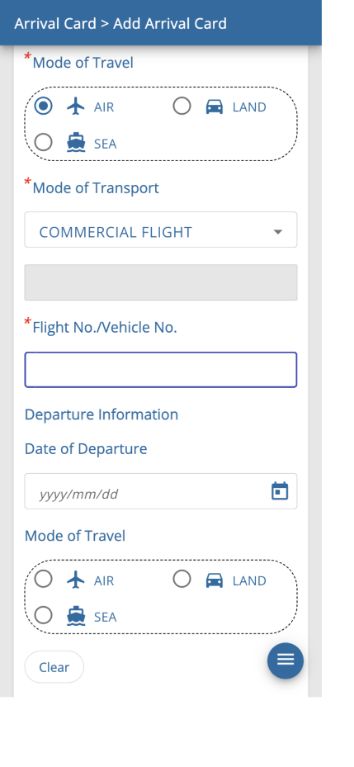
Trip Information has separate sections for arrival in Thailand and departure from Thailand. Start with Arrival Information and your incoming ticket. Use the local arrival date in Thailand and the flight arriving there, rather than simply copying your departure date.
For a holiday arriving on a scheduled passenger flight, select HOLIDAY, AIR and COMMERCIAL FLIGHT. These answers describe a holiday by air. Choose answers that match your actual trip if you are coming for business or study, or entering by land or sea.
Type the English country name or three-letter code, then choose the result from the list. If you board the direct Thailand-bound flight in India, search for India and select the matching result. If you connect in another country, use where you board the flight arriving in Thailand. The preserved screenshot’s KOR : REPUBLIC OF KOREA is a Korean boarding example; do not copy it for a flight boarded in India.
Below arrival details is Departure Information. Its date and flight number refer to leaving Thailand, not leaving your home country. With a return ticket, use the local departure date and flight number from Thailand.
Departure fields in the preserved screen have no mandatory star. Do not invent a date or flight if plans are not fixed. An optional form field does not remove the separate need to be ready to explain your return or onward plans at immigration.
Use Clear to reset an incorrectly selected departure travel mode. Read the headings so you do not confuse arrival AIR with departure AIR.
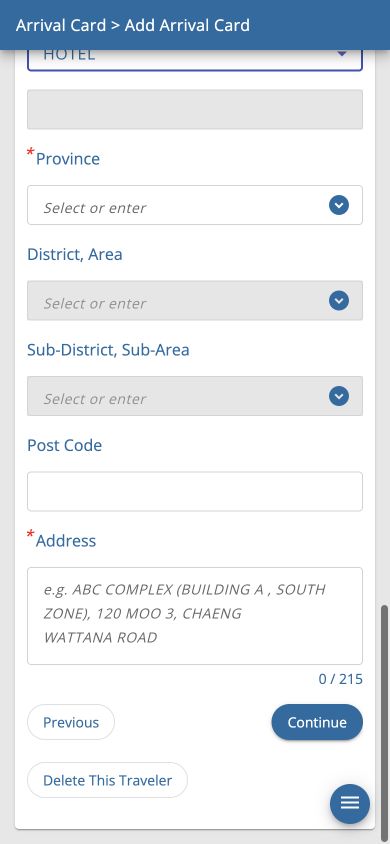
Open your accommodation booking and find the English address in Thailand. This section is not asking for your home address. Copy the hotel name, administrative area and address from the booking or the hotel’s official information.
Required fields can vary by accommodation type. In the preserved screen, choosing HOTEL removes mandatory stars from District and Sub-District. Follow the stars on your own form instead of applying that behaviour to every accommodation type.
Select the larger area first: Province, then District, Area, then Sub-District, Sub-Area. This enables the dependent lists. Choose the names matching the accommodation address, even if others look similar. For a Bangkok stay, the Province can be BANGKOK.
I am a transit passenger, I don’t stay in Thailand describes transit without a stay. Do not select it simply because you have not booked a hotel. It may be disabled depending on other answers. If you enter Thailand for a holiday and stay there, provide your actual accommodation details.
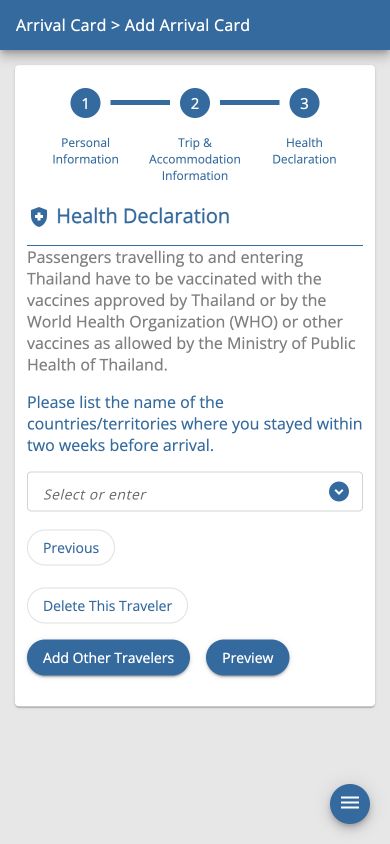
List the countries or territories where you stayed during the two weeks before arrival. Include your actual recent stays. This is not the field for Thai cities you will visit later.
Type an English country name or code and choose the relevant search result. Passport nationality, residence, boarding country and recent stays are different questions. Do not copy the same country into every field unless it is correct.
The screen includes Ministry of Public Health vaccination information. The official guide explains that additional health questions can appear depending on recent countries, boarding country, nationality and flight. Answer the questions and provide evidence actually requested for your circumstances. The preserved screenshot is a basic example using Korea; it does not show every traveller’s possible questions.
Press Preview to review. Previous returns to the earlier step and Add Other Travelers adds another traveller. Use each person’s actual passport and travel history rather than copying one person’s country history for everyone.
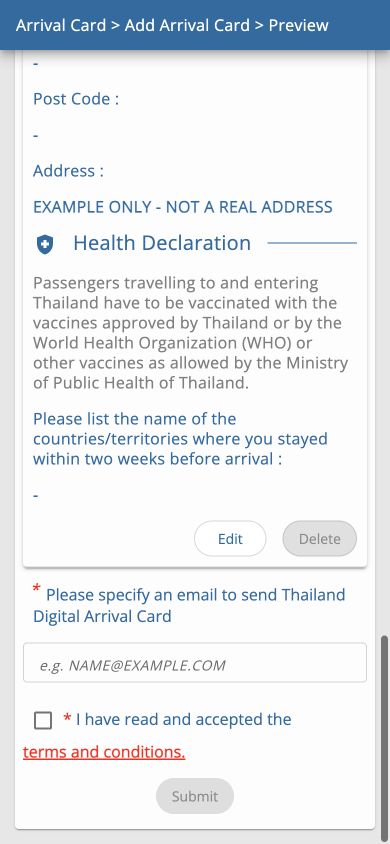
Read your name, passport number, nationality and birth date again, together with arrival date, boarding country, incoming flight and accommodation address. Use Edit to correct mistakes. EXAMPLE in the preserved screenshot is demonstration text; no actual arrival declaration was submitted.
Enter an email address you can access in the email field at the bottom. It is not a name field. Check the spelling on both sides of @. Access to that inbox on your phone makes the completed document easier to find.
Read the Terms and conditions, tick acceptance yourself if you agree, then press Submit. The button is disabled without the required agreement. Viewing Preview alone does not submit the form.
If an error appears or no completed document is provided, do not assume submission succeeded. Look for the actual completion notice and TDAC document before saving them.
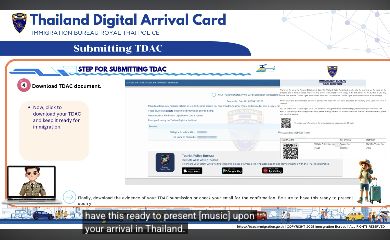
A successful submission provides confirmation and the TDAC download. The official video shows both. The preserved image is a completion example from that official video, captured in a mobile browser. The video contains an older desktop screen, so its layout can differ from the current mobile application.
Download the document and check that the name, passport details and arrival date match your trip. Keep the declaration number, QR code and confirmation details, and find the emailed copy too. Do not use the video’s example number or QR code for your own entry.
Save the actual file so it opens offline. Keeping only an email link is less useful if the airport connection is unreliable. You may also carry a printed copy.
Keep the confirmation available to show at entry and during your stay. A completed TDAC is not a visa or permission to enter. Visa exemption or visa eligibility and immigration inspection are separate.
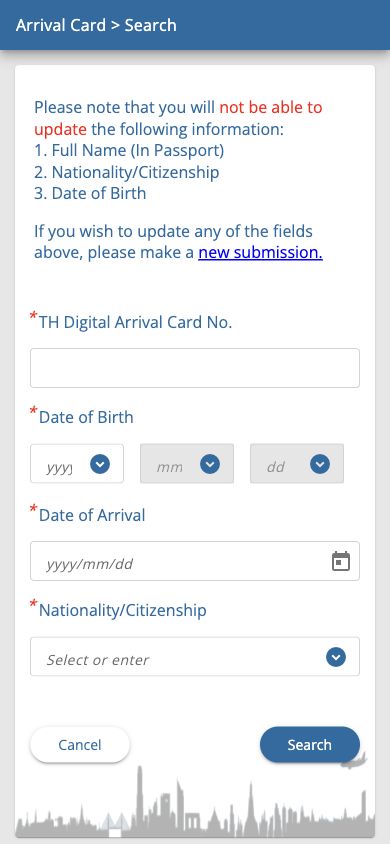
Choose Update Arrival Card on the opening screen. The preserved search screen asks for the TDAC number, birth date, arrival date and nationality. Use your document and passport to complete the fields, then press Search.
The official FAQ says that full passport name, passport number, nationality and date of birth cannot be updated. If one of these is wrong, submit a new form with the correct details. For editable information such as accommodation, update and resubmit before entering Thailand, then save the new document.
The image shows the search for an existing submission. If you have never submitted, return to Arrival Card to make a new form instead of looking here for a TDAC number.
Yes. Submission through the Immigration Bureau’s official website has no fee. Check that the address bar says tdac.immigration.go.th.
Yes. Use the website’s language options or browser translation, but enter the details in English. Copy passport information from the passport and the accommodation address from the English booking.
Yes. Non-Thai travellers, including infants and children and those using visa exemption, need their own traveller details. Transit without passing Thai immigration is exempt.
No. The arrival declaration and visa are separate. Meet the visa-exemption conditions for your passport, or obtain the visa required for your purpose.
Submit a new form with the correct name. Full name, passport number, nationality and birth date cannot be updated according to the official FAQ. Correct editable details through Update Arrival Card before entry, then resubmit and save the document.
No. Enter the airline code and number of the flight arriving in Thailand in Flight No./Vehicle No., not the booking reference or seat number.
No. Date of Departure is the local date you leave Thailand. Read the Thai departure details on your outbound ticket.
In the preserved screen, their required stars disappear after HOTEL is selected. Requirements vary by accommodation type, so follow the stars shown on your own form.
No. It asks for countries and territories where you actually stayed during the two weeks before arrival.
No. Preview is the review screen. After checking your email and the terms, submit and look for the success notice and completed TDAC document.
Sources checked:
Content last updated:
Latest deployment: